Cart

Your cart is empty
Subtotal
$0.00
plus Tax
General Motors - Automotive Manufacturing Backup and Recovery
macrium-website-logo-dark-blue-husco-1.svg
macrium-website-logo-dark-blue-preh-1.svg
Disney - Backup and Recovery

What is SiteBackup

Macrium SiteBackup is centralized backup and recovery software for Windows servers and workstations across IT and operational technology (OT) environments. It creates full-system image backups that capture Windows, applications, settings and data.
 
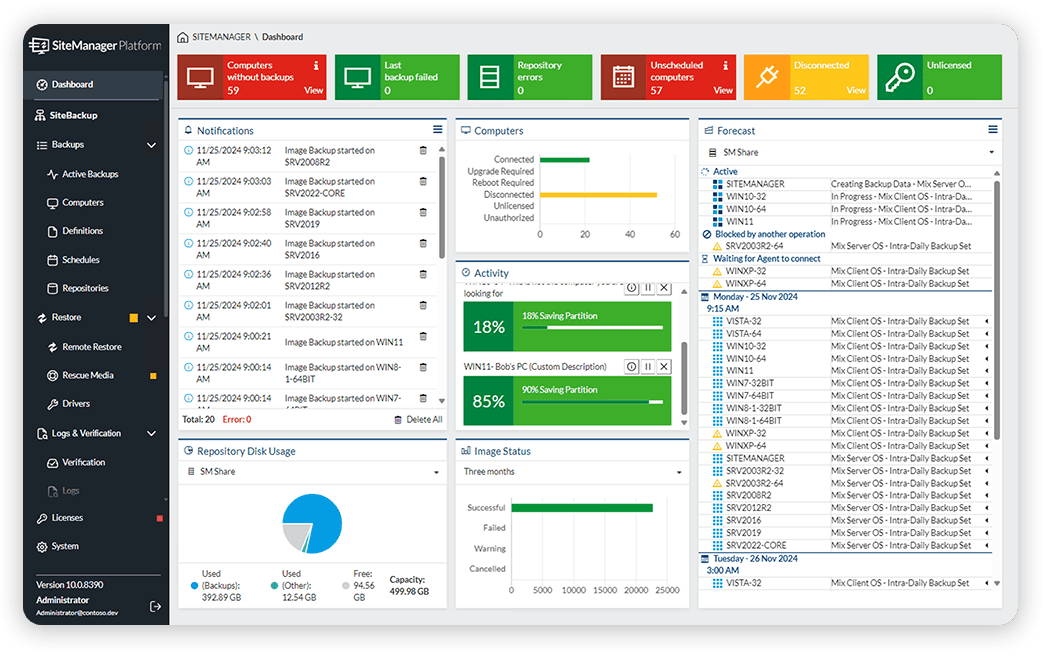
Configure and manage backup policies, monitor protection and initiate restores from one central console. Recover individual files or complete systems, with options to restore to replacement hardware.
 
SiteBackup runs on your own infrastructure and supports legacy and modern Windows systems, including networks without internet connectivity. Fit backups around your team’s workloads, production schedules and network capacity.

What Changes with SiteBackup


Recover with less guesswork

 
Guided recovery and centrally collected drivers help you restore files or complete systems, even to replacement hardware.

 

Control backups from one place

 
Apply policies across your systems and see failed or missed backups without checking every machine individually.
 

Fit backups around operations

 
Use scheduling and resource controls to minimize the impact on workloads and networks during busy periods.
 

Protect the systems you already run

 
Protect legacy and modern Windows systems on your own infrastructure, without depending on the cloud.

Manage Backup and Recovery Around Your Operations


Manage protection across your site

 
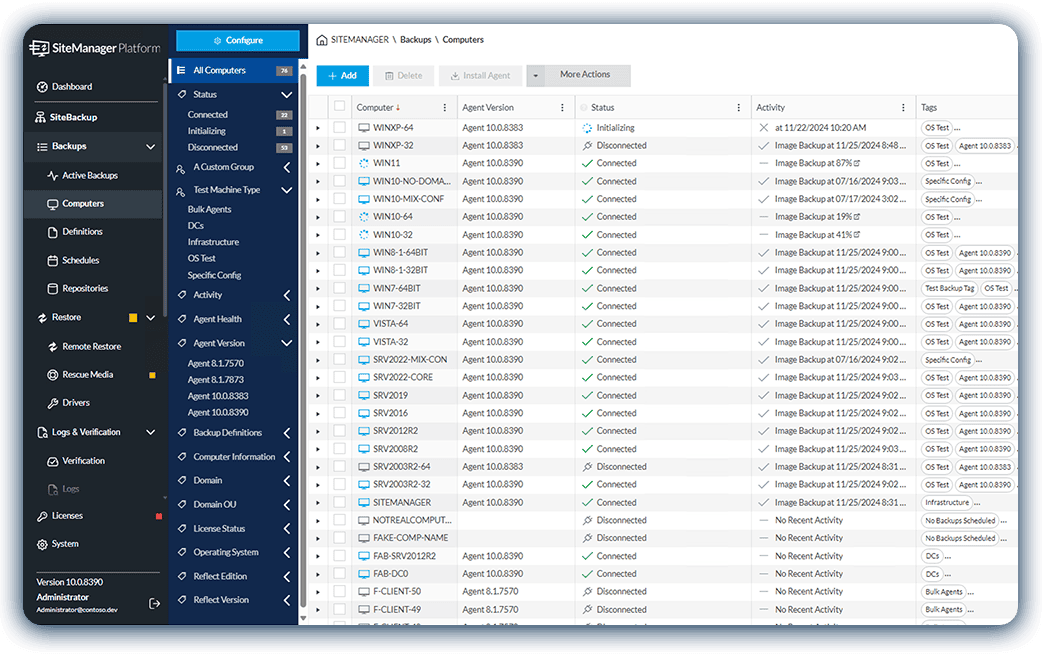
Checking machines one by one takes time you don’t have. Install backup agents remotely, then apply backup policies to groups of systems using tags.
 
See backup status in one console. Use alerts and detailed, human-readable logs to investigate failures and missed backups, and manage agent updates centrally. As your estate grows, bring additional systems into the same approach.

Prepare for recovery before systems fail

 
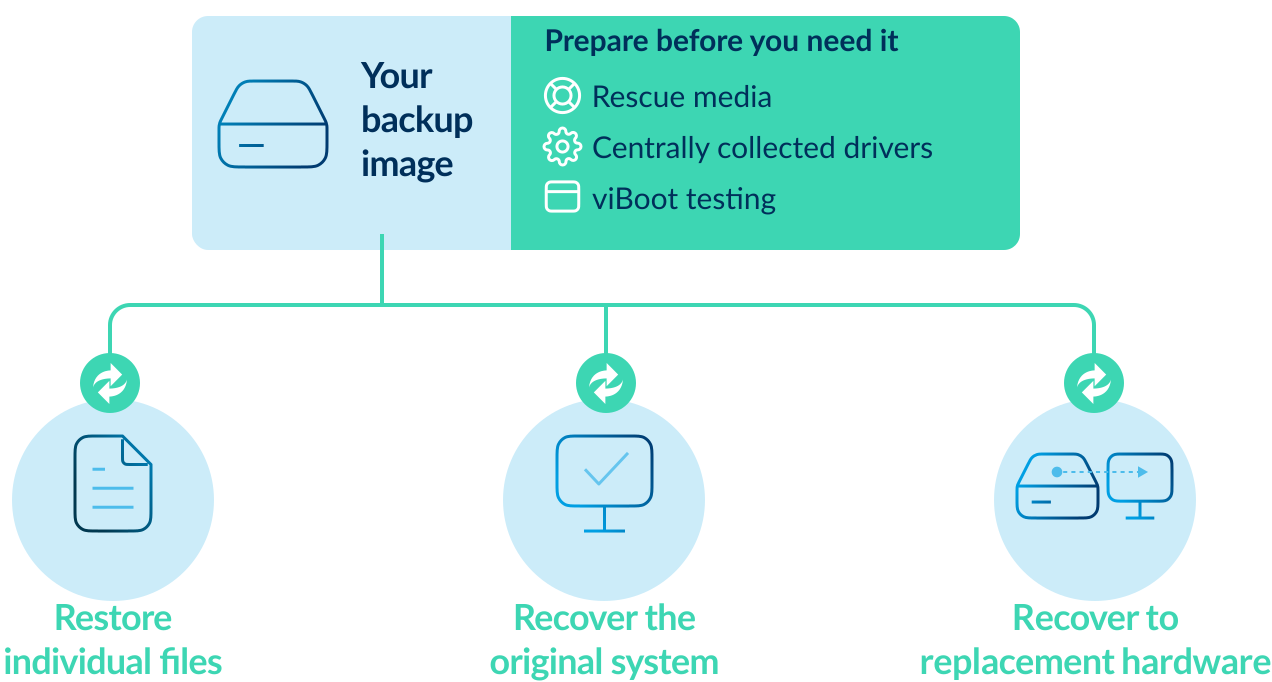
When a critical machine stops or you lose important data, you need a clear recovery path. Restore individual files remotely, recover a complete system or move it to replacement hardware.
 
Prepare rescue media and collect drivers centrally so your team has them ready when needed. Use viBoot to test a backup as a virtual machine before you need to rely on it.

Control backup activity in constrained environments

 
Busy production lines, limited bandwidth and older Windows systems need protection that fits their constraints.
 
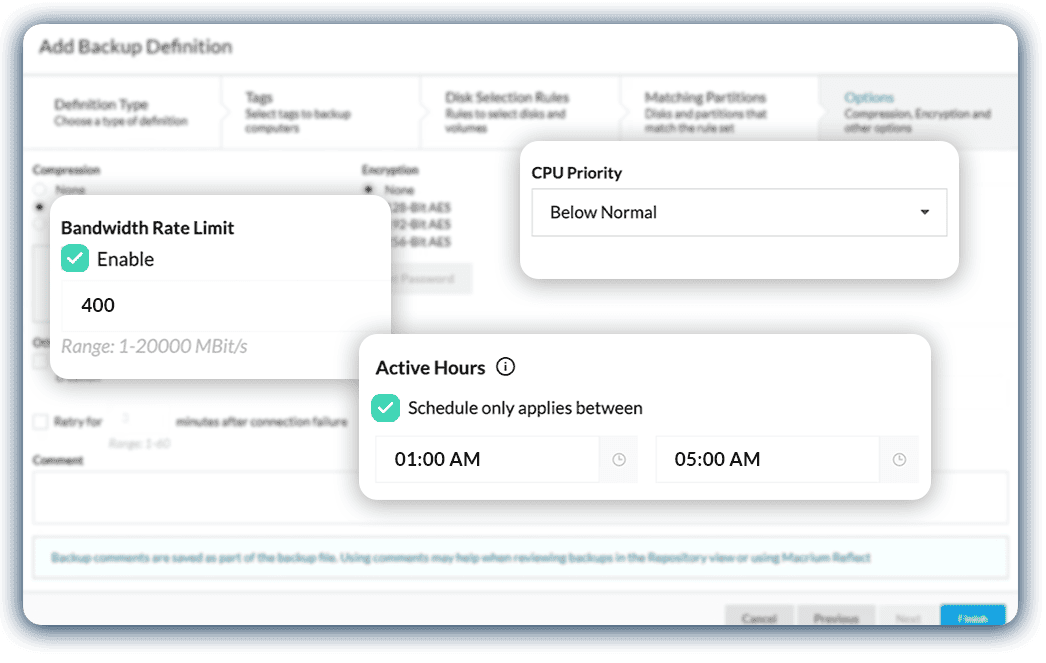
Schedule backups around operating windows and blackout periods. Use bandwidth limits and CPU priority settings to minimise the impact on busy systems and constrained networks.

How SiteBackup Works

 
Manage backup and recovery in four clear steps, with one console to keep you in control as your Windows estate grows.
 

Connect

 
Install backup agents on your Windows systems and connect them to your central console.
 

Configure

 
Choose what to back up, when backups run and where they’re stored. Apply policies to groups of systems.
 

Monitor

 
See backup status, receive alerts and investigate failures from one console.
 

Recover

 
Restore individual files or complete systems, including to replacement hardware.

Recovery and Security Features for Critical Systems


Full-system image backup

 
Back up Windows, applications, settings and data in one image, so you can recover the complete system without rebuilding it from scratch.
 

Faster system recovery

 
Rapid Delta Restore restores only changed blocks, helping you recovery a failed system faster.
 

Recovery over the network

 
Automatically configured PXE rescue media lets you boot and recover systems over the network, without preparing a USB for each machine.
 

Centrally managed recovery drivers

 
Collect drivers centrally with automated driver harvesting, so rescue media can access storage and network hardware without hunting for drivers during recovery.
 

Recovery testing and instant virtual recovery

 
Use Macrium viBoot to start a backup image as a virtual machine, test it in a sandbox or run the backed-up system temporarily while you prepare a full restore.
 

Ransomware protection for backups

 
Macrium Image Guardian protects backup files from unauthorized changes, including attempts by ransomware to encrypt or delete them.
 

Backup encryption

 
Use AES encryption to protect backup contents from access without the correct password.
 

Role-based access

 
Control what users and groups can view and manage, so you can delegate tasks with appropriate permissions.

SiteBackup Pricing and Licensing

 
Protect your Windows systems with an annual SiteBackup plan. Get started today.
Perpetual licensing is also available as a one-time purchase. Want to discuss this option or find the right licensing for your systems? Speak to our team.
background image

Find the Right Backup Solution

 
Don’t need centralized backup management?
 
Macrium Reflect lets you back up and recover individual Windows machines. Compare our products to find the right fit for your systems.

Proven in the Field

Husco reduced recovery from 8 hours to 40 minutes

 
Husco uses SiteBackup to protect legacy and modern Windows systems across its manufacturing environment, helping its team recover faster when systems fail.

Preh simplified backup management and saved time

 
Preh uses SiteBackup to schedule backups and manages systems over the network, reducing hands-on administration and giving its team greater confidence in recovery.

Compatibility and Deployment

Supported Windows systems


Workstations

 
  • Windows XP SP3
  • Windows 7, 8/8.1, 10 and 11
  • Windows Server 2003 SP2 / R2, 2008 / 2008 R2, 2012 / 2012 R2, 2016, 2019 and 2022
  • Windows Small Business Server 2003 / 2003 R2, 2008 and 2011
  • Windows Home Server 2011
  • Windows MultiPoint Server 2010, 2011 and 2012
  • Windows Storage Server 2003, 2008 / 2008 R2, 2012 / 2012 R2 and 2016
  • Windows 10 and 11 IoT Enterprise
  • Windows 10 IoT Core
  • Windows 7 Embedded POSReady and Standard
  • Windows Server 2019, 2022 and 2025 Core
 
Supported Windows systems can run on physical hardware or within virtual machines. Backup software is installed in each protected system.
 
Feature availability and setup requirements vary by edition, particularly for Embedded and Server Core. Check our Knowledge Base for details.

Console and deployment

 
  • Central console: 64-bit Windows 7 / Windows Server 2008 R2 or later.
  • Deployment: On-premises. Install backup agents remotely, through management tools such as Tanium, or manually on restricted networks.
  • Connectivity: Protected systems connect to the console and backup storage over your network. Offline activation is available, and operation does not require internet access when using local infrastructure. Cloud storage destinations require connectivity to those services.
 

Backup destination

 
  • Backup destinations: Local repositories, network shares, Azure File Share and Amazon Storage Gateway.
  • Remote synchronization: Copy backups to additional destinations, including S3-compatible storage.

 

Linux backup and recovery is in development

 
We’re extending SiteBackup to help you manage protection across Windows and Linux systems from one console.
background image

Try SiteBackup in Your Environment

 
Start a free 30-day trial to explore centralized backup and recovery on your own systems.
 
Need help assessing the fit? Speak to our team.

Resources

FAQ